


|
|
|
|
|
Note: If your system is configured for the Fee Item Master feature, some steps in this procedure may change due to selections made at the Fee Item Master level.
To edit a fee item:
 Perform an Expense Rate Group search, and then select the required Expense Rate Group (ERG).
To perform an Expense Rate Group search:
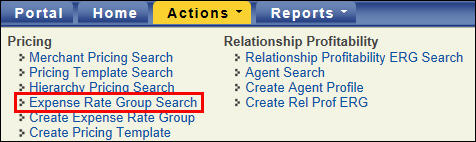
The Expense Rate Group Search page opens.
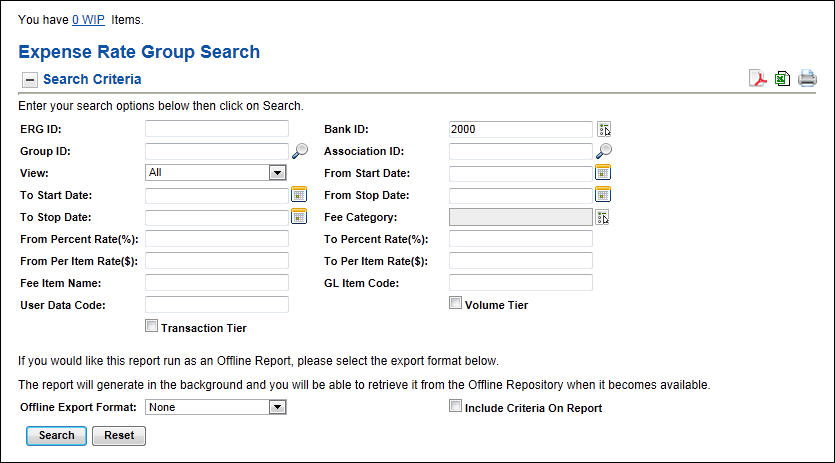
search criteria, and then select Search. or lookup icon
  is provided, click it to open a box where you can search for and select the criterion you want to search or report on.View
From the drop-down list, select the hierarchy level you want to search on:
Volume TierSelect this check box to search on profiles/fee items that have Volume Tier pricing (or expense method) in place.
-or-
To run the report as an Offline Report, select an Offline Export Format, and then select Search.
The report generates in the background and you will be able to retrieve it from the Offline Repository when it becomes available.
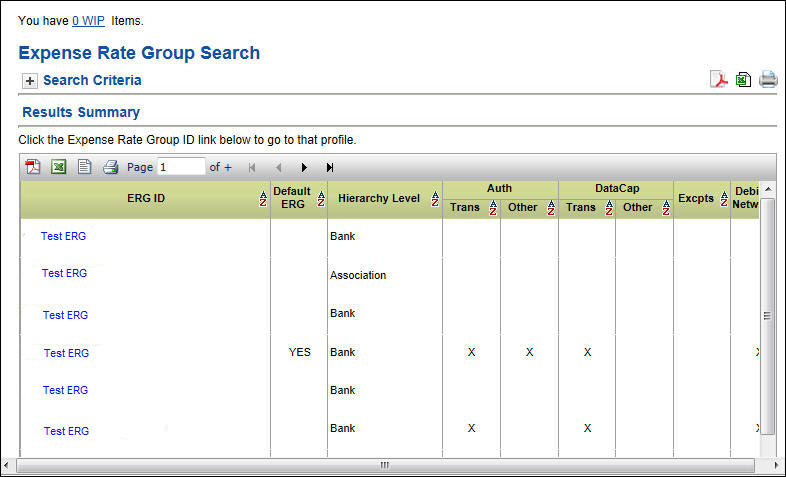
The screen displays a list of ERGs that met the search criteria, along with a snapshot of the types of fees set up within the ERG. Select the Expense Rate Group (ERG) to view the template.
-or-
Perform an Income Rate Group search, and then select the required Income Rate Group (IRG).
To perform an Income Rate Group search:
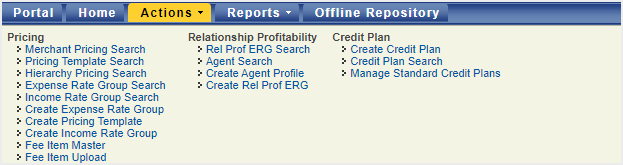
The Income Rate Group Search page opens.
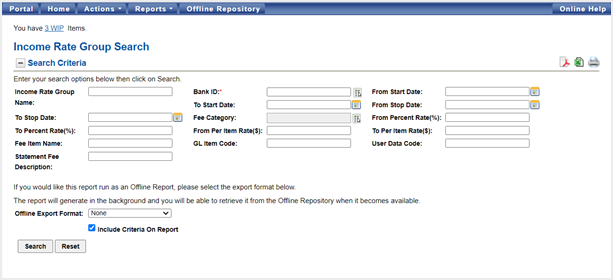
search criteria, and then select Search. or lookup icon is provided, click it to open a box where you can search for and select the criterion you want to search or report on.-or-
To run the report as an Offline Report, select an Offline Export Format, and then select Search.
The report generates in the background and you will be able to retrieve it from the Offline Repository when it becomes available.
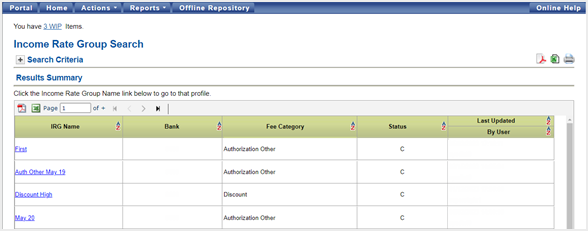
The screen displays a list of IRGs that met the search criteria, along with a snapshot of the types of fees set up within the IRG. Select the Income Rate Group (IRG) to view the template.
-or-
Perform a Merchant Pricing search, and then select the required merchant number.
To search for a Merchant Pricing Profile on the Merchant Pricing Search page:
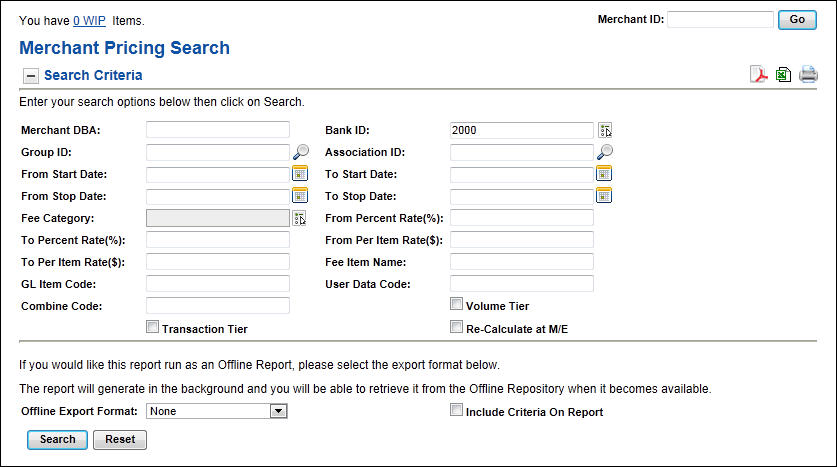
The Merchant Pricing Profile page for that merchant opens.
-or-
From the Offline Report Format drop-down list, select None (this is the default), enter the Search Criteria, and then select Search.
or lookup icon is provided, click it to open a box where you can search for and select the criterion you want to search or report on.Fee CategoryThese fee categories are available for selection:
Authorization OtherFees associated with the authorization of a transaction not captured under the Authorization Transaction category.
Authorization TransactionsFees associated with the authorization of a transaction.
Card Brand FeesAcquirer type fees established by the major card brands, such as MC, NABU, VS TIF, and DS Data Usage.
Data Capture OtherOther capture related fees. For example, Level 3.
Data Capture TransactionsFees associated with closing out terminal, sending batches, or settling online transactions (not funded).
Debit NetworkFees for the network association or issuing bank. The surcharge for calling into the network for processing, PIN based debit only (online debit).
DiscountBase discount fee based on sales activity or card type.
EBTFees associated with Electronic Benefits Transfer.
ExceptionsFees for exception-type of activity, such as chargebacks, adjustments, and retrievals.
InterchangeFees as defined by major card brands.
Individual PlanFees based on card type and/or transaction type, such as sales, cash and credit (returns).
MISC Fixed FeesMiscellaneous fixed fees, typically for non-transactional time-frame related services, such as training, residency, profile builds, and terminal downloads.
MISC Per Item FeesMiscellaneous per item fees, typically for front-end products and services, such as call center help, training, residency, profile builds, and terminal downloads.
Volume TierSelect this check box to search on profiles/fee items that have Volume Tier pricing (or expense method) in place.
Tip: When searching on the Merchant DBA, you can enter partial information (at least 3 characters).
The page refreshes to list the Results Summary of merchants that meet the search criteria, along with a snapshot of the types of fees set up within their pricing profile, and provides icons you can select to export the report to PDF  or Excel
  .
.
Note: The x’s indicated in the search results summary only reflect merchant-level fee items, not hierarchy fee items which may be defaulted for that merchant. The indication of x’s reflect a match to the conditions of the search and do not necessarily represent the complete set of fees in that merchant’s pricing profile.
-or-
Perform a Pricing Template search, and then select the required template.
To perform a Pricing Template search:
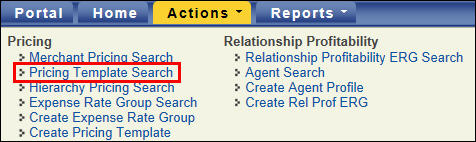
The Pricing Template Search page opens.
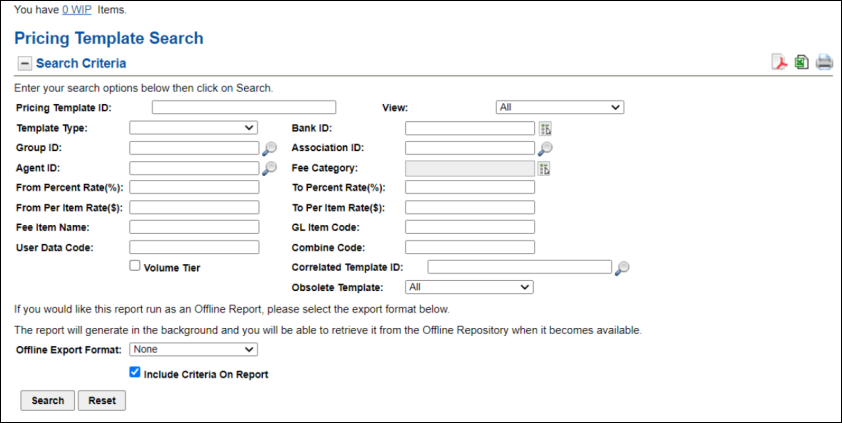
search criteria, then select Search. or lookup icon is provided, click it to open a box where you can search for and select the criterion you want to search or report on.ViewFrom the drop-down list, select the hierarchy level you want to search on:
Fee CategoryThese fee categories are available for selection:
Authorization OtherFees associated with the authorization of a transaction not captured under the Authorization Transaction category.
Authorization TransactionsFees associated with the authorization of a transaction.
Card Brand FeesAcquirer type fees established by the major card brands, such as MC, NABU, VS TIF, and DS Data Usage.
Data Capture OtherOther capture related fees. For example, Level 3.
Data Capture TransactionsFees associated with closing out terminal, sending batches, or settling online transactions (not funded).
Debit NetworkFees for the network association or issuing bank. The surcharge for calling into the network for processing, PIN based debit only (online debit).
DiscountBase discount fee based on sales activity or card type.
EBTFees associated with Electronic Benefits Transfer.
ExceptionsFees for exception-type of activity, such as chargebacks, adjustments, and retrievals.
InterchangeFees as defined by major card brands.
Individual PlanFees based on card type and/or transaction type, such as sales, cash and credit (returns).
MISC Fixed FeesMiscellaneous fixed fees, typically for non-transactional time-frame related services, such as training, residency, profile builds, and terminal downloads.
MISC Per Item FeesMiscellaneous per item fees, typically for front-end products and services, such as call center help, training, residency, profile builds, and terminal downloads.
Volume TierSelect this check box to search on profiles/fee items that have Volume Tier pricing (or expense method) in place.
-or-
To run the report as an Offline Report, select an Offline Export Format, and then select Search.
The report generates in the background and you will be able to retrieve it from the Offline Repository when it becomes available.
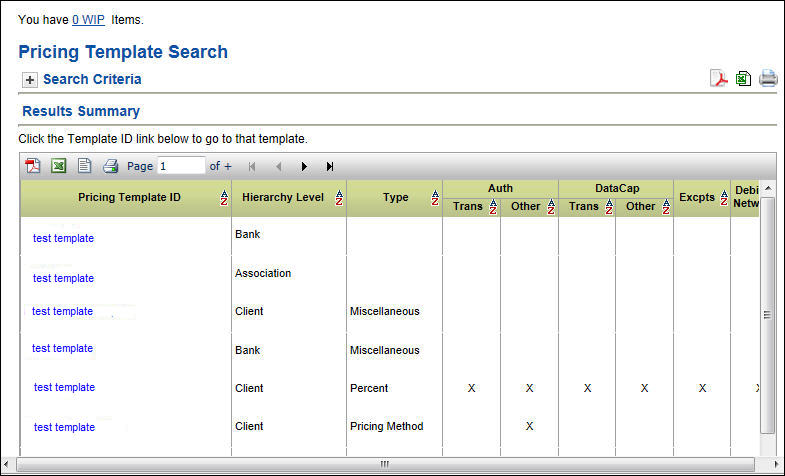
The screen displays a list of pricing templates that met the search criteria, along with a snapshot of the types of fees set up within the pricing template. Select the Pricing Template ID to view or maintain the template.

The Update Fee Item box opens.
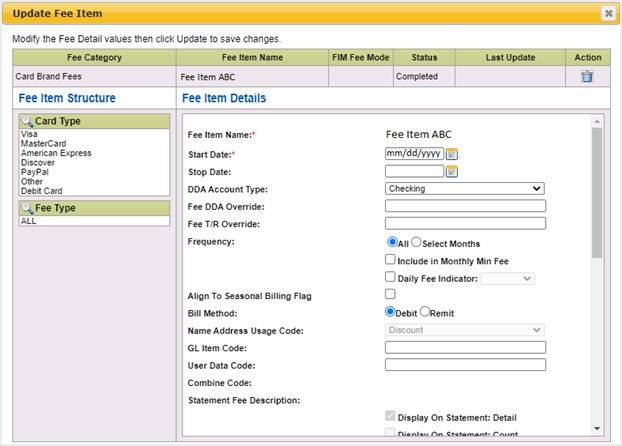
Note: Available fields will vary, depending on the fee category.
You will be navigated back through each level to either add or remove selected items.
Note: With an existing, completed Fee Item (one that is not in a work-in-progress status), you cannot change the Start Date to a date prior to the current date. If the existing Fee Item has an incorrect Start Date that should be earlier than the current date, delete the Fee Item and then add a new one with the correct Start Date.
Once the changes have been saved, you will be returned to the summary screen.
In This Chapter |